Explore getting started documentation.
Pages in this section
- Logging in
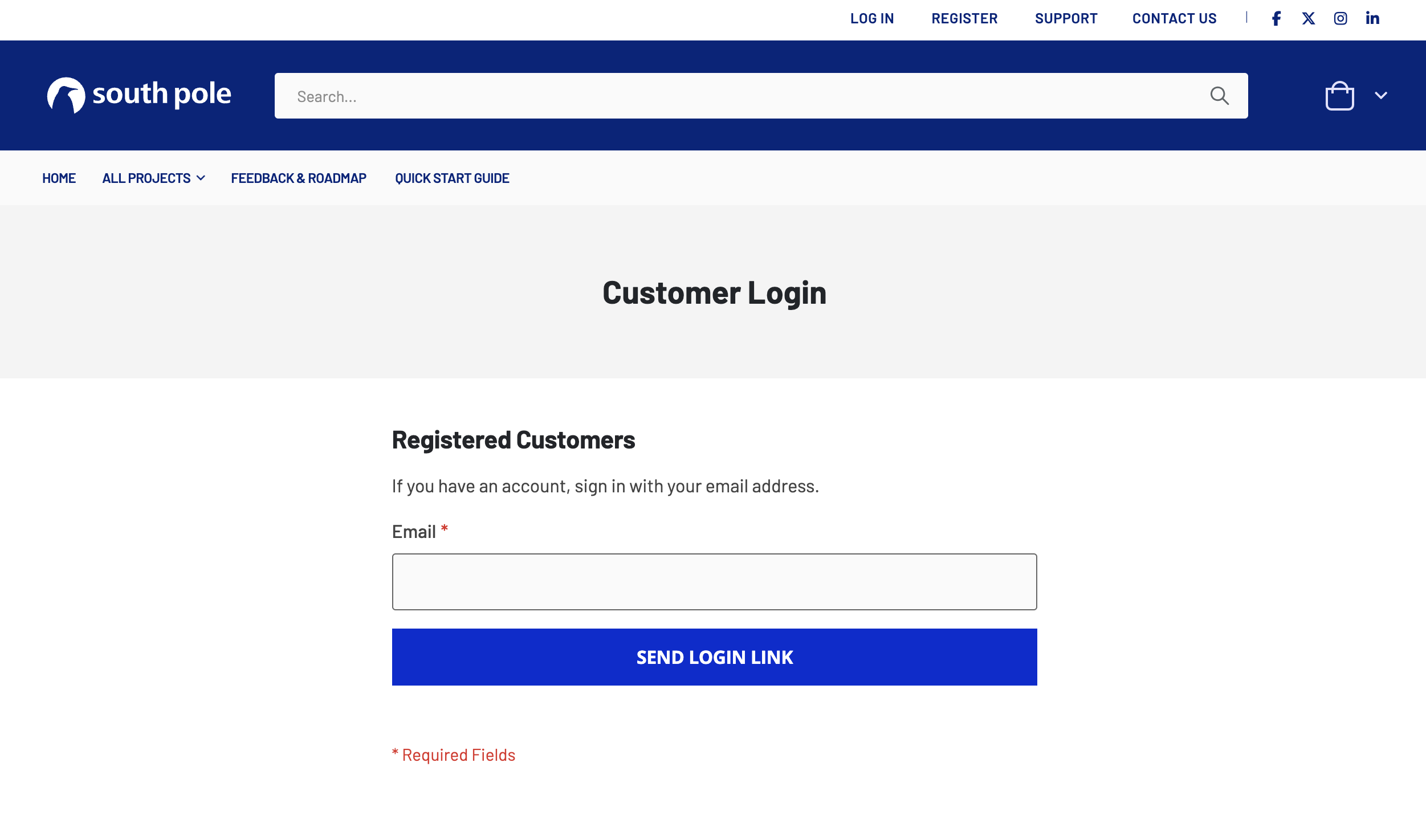
- Find the ‘Log In’ Link: this is at the top of every page when you are not already logged in.
- Fill in your Email: enter the email you are registered with.
- Click ‘Send Login Link’: to be sent a one-time secure login link.
- Check Your Email: Click the link in the email to log in to your account.
- First log in
To place an order and support a climate action project, you will first need to sign in so that the order is correctly attributed to your property.
- Click on “Sign in” in the top banner.
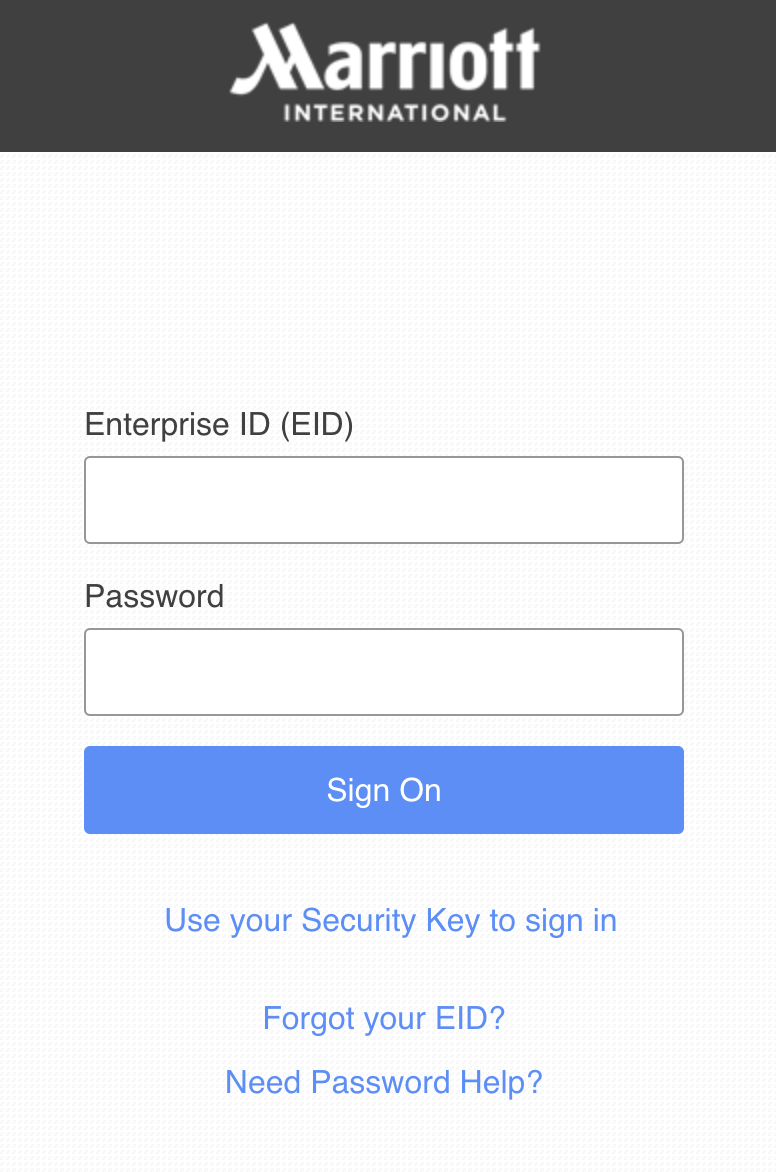
- Select the “Login via Marriott employee EID” option.
- A new tab will open and prompt you to fill in your Marriott credentials.
- If the information you inputted is correct, the tab will automatically close and bring you back to the shop.
In case you are linked to several properties, please make sure you fill in the credentials of the property where the event for which you just calculated the carbon footprint took place. The property information you use here should always match that used in the MIR tool.
- Subsequent log ins
To place an order and support a climate action project, you will first need to sign in so that the order is correctly attributed to your property.
- Click on “Sign in” in the top banner
- Select the “Login via identity provider” option.
- A new tab will open and prompt you to fill in your Marriott credentials.
- If the information you inputted is correct, the tab will automatically close and bring you back to the shop.
In case you are linked to several properties, please make sure you fill in the credentials of the property where the event for which you just calculated the carbon footprint took place. The property information you use here should always match that used in the MIR tool.
- Create an Account
To register as a new user, just follow these simple steps:
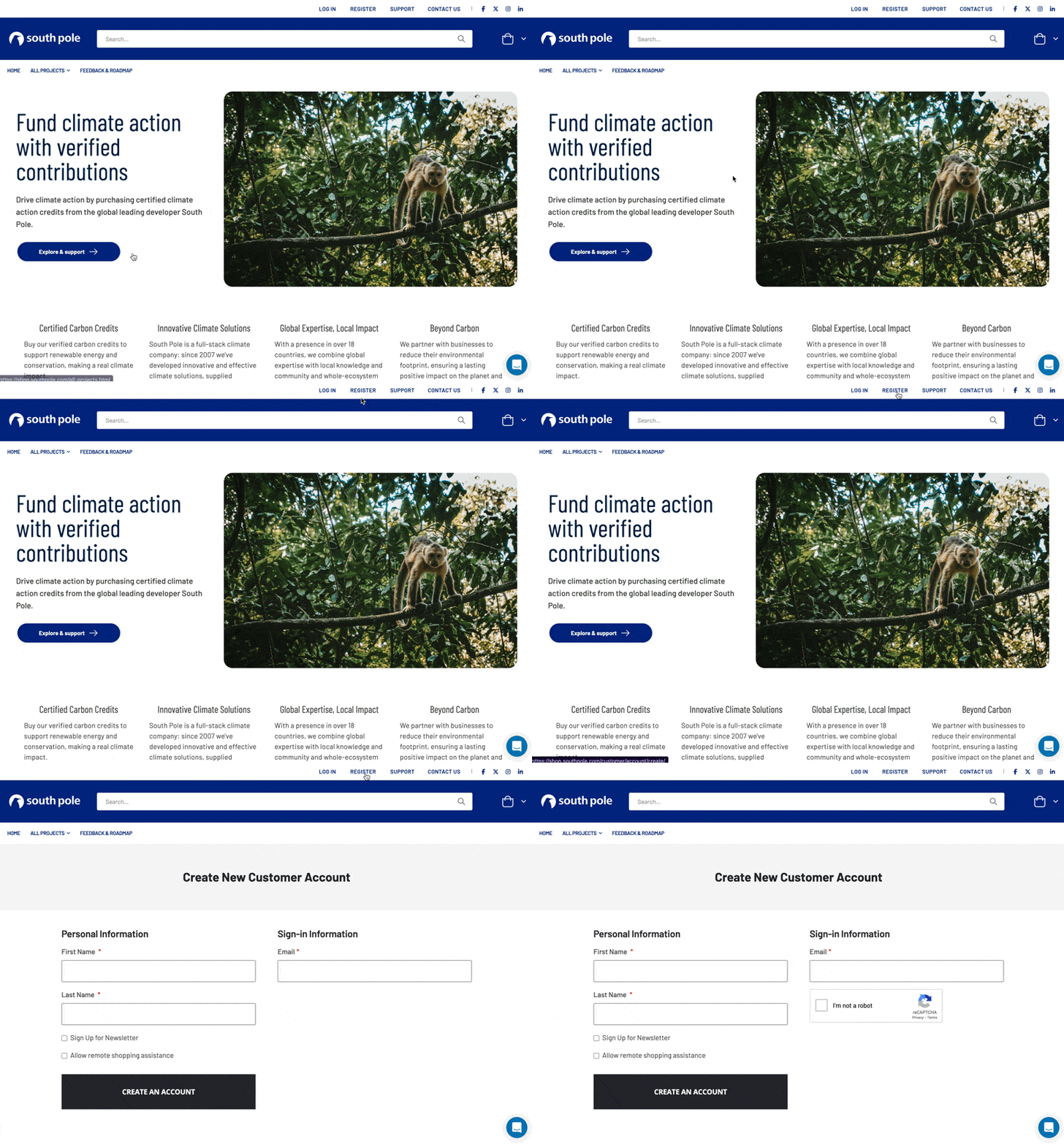
- Find the ‘Register’ Link: this is at the top of every page when you are not already logged in.
- Fill in Your Details: Clicking on the “Register” link will take you to a registration form. Here, you’ll need to fill in some personal details.
- Your first and last name
- Your email address
- There is no password - we send you a link to login instead, for increased security.
- Submit Your Registration: After filling in all the required fields, click “Create an Account” to submit the form.
- Check Your Email: Once you’ve submitted your registration, we’ll send you an email to confirm that your account. Check your inbox for this email. If you can’t find it, check your spam or junk folder just in case.
- Confirm Your Account: Open the email and click on the confirmation link inside. This will verify your email address and activate your account.
- Log In to Your New Account: With your account now active, you can go back to the site and log in.
And that’s it! You’re now registered and can start using the site. If you have any trouble during the process, use the help at the bottom left to get assistance.
- Account settings
When you click on your name and “My Account” in the top banner of the Impact Shop, you can access your account settings and purchase history. This page will take you through everything you can do from this section of the shop.
The very first tab on the menu from the left side of your screen “My Account” offers you an overview of all your account details. You can go through the other tabs to take action.
- Changing your account details
To change your email address or your account name, click on the “Account information” tab (4th from the top).
Account name
You can change your account name by just filling in either/both of the First and Last Name fields and clicking on “Save”.
Account email address
In order to change your email address you will have to:
- Check the “Change Email” checkbox
- Fill in your current email address
- Input your password
- Click on Save
You will immediately be logged out of your account and receive a confirmation email to inform you the email address linked to your account has been changed.